How to Create Your First Digital Product in Under an Hour Using Canva + AI in 2026

You don’t need to be a designer, content creator, or some tech expert to start creating and selling digital products in 2026. Now more that ever, it’s easy to create and monetize your own digital products. With beginner-friendly AI and the right Free Canva templates, you can create your first digital product in under an hour.
Why The Idea of Creating Digital Products Feels Harder Than it is.
If you’ve ever thought:
- “I want to sell a digital product, but I don’t know what to create.”
- “Everything online feels complicated and overwhelming.”
You’re not behind or incapable of creating your own products; you’re just missing clarity.
Most beginners don’t struggle because they lack motivation or creativity.
They struggle because they try to design before they decide who their product is actually for. If you don’t know who you’re creating the product for and what their actual needs are, it’s hard to know what to make.
This post will show you how to create digital products with AI in a way that feels calm, clear, and achievable, using structure first, design second, and tools that support beginners instead of overwhelming them.
By the end, you’ll know:
- What type of digital product to create
- How to use AI to get unstuck fast
- How to build a clean, valuable PDF using Canva
- How to finish in under an hour without design experience
But first, if you’re still unsure about who you’re designing the product for, I have a free guide to help you narrow down your niche to help give you some clarity. You can download it here.
Table of Contents
What It Really Means to Create Digital Products With AI
When people hear “AI-powered digital products,” they often assume it’s technical or advanced.
In reality, beginner-friendly AI simply helps you:
- Clarify your ideas
- Organize information
- Create structure faster
- Reduce decision fatigue
AI doesn’t replace your knowledge or your voice; it supports your thinking and keeps momentum going when you feel stuck.
In this guide, we’ll be using:
- ChatGPT for idea clarity, outlines, and first drafts
- Canva for layout, structure, and simple customization
Together, they make it possible to create your first digital product without having to start from a blank page.
The Best First Digital Product for Beginners
If this is your first product, your goal is speed and completion, not perfection. No matter how much time you spend on your designs (especially in the beginning), you’ll always find something you want to change in order to “improve” your design. Your greatest challenge here will simply be knowing when to stop and let it be complete. One of the best things you can do is simply get your first product out there, and then let your audience tell you how to make it better instead of trying to guess.
The easiest place to start is a:
✔ Short Canva Workbook or Guide (10–15 pages)
Why this works so well:
- Canva templates remove design overwhelm
- Short PDFs are easier to finish and validate
- They work well for both personal brands and faceless businesses
- You can create real value without overexplaining
Beginner-friendly digital product ideas include:
- A guided workbook (How to Create a 7-Day Meal Plan Without Stress, How to Teach Kids Responsibility Without Yelling)
- A simple checklist or framework (10 Steps to Decluttering Your Home, Weekly Meal Planning Checklist)
- A short how-to guide (How to Organize Your Home in 30 Minutes a Day, How to Start Your Business in 7 Days)
- A starter planner or roadmap (Home Organization Reset Roadmap, Roadmap to Your First $10K Month)
You don’t need to make your first product 50 pages long.
Clarity builds trust more than length. Your product should focus on solving one specific problem that your audience has, and then create other products to solve their other problems once you have feedback from your first product.
Step 1: Use AI to Get Clear on What to Create (10–15 Minutes)
Before opening Canva, you need one thing:
A clear problem your product solves. If your product doesn’t solve a problem for your audience, there isn’t really an incentive for them to buy it.
ChatGPT Prompt to Use
Paste this into ChatGPT and fill it in with your unique information :
“I want to create a valuable beginner-friendly digital product.
My skills or interests include: [list them].
My ideal audience is: [describe them – what are their pain points/pleaseure points, what is their age, gender, time constraints, their values]
Give me 5 simple digital product ideas that solve one clear problem and could be created as a short PDF workbook or guide (10-15 pages).”
AI will give you ideas, but you want to choose the one that:
- Feels easiest to explain
- Solves one specific problem
- You could outline today
That’s how you create digital products with AI without losing control of your message. If, after receiving the 5 suggestions, you don’t feel there is a clear best choice, let ChatGPT know what it is you like and dislike about the suggested product ideas, and ask it to give you another 5 based on your feedback.
Step 2: Create a Simple Product Outline With AI (10 Minutes)
Once you choose your idea, you can use AI to help you structure it.
Prompt example:
“Create a simple 10–15 page outline for a beginner-friendly PDF workbook on [your topic]. Each page should have one clear purpose.”
A strong beginner guide often includes:
- A welcome or overview
- Who it’s for
- The problem explained simply
- A mindset shift or reframing
- Step-by-step guidance
- Prompts or exercises
- Clear next steps
At this stage, you’re not writing everything yet; you’re just building the roadmap.
Step 3: Choose a Canva Template (10 Minutes)

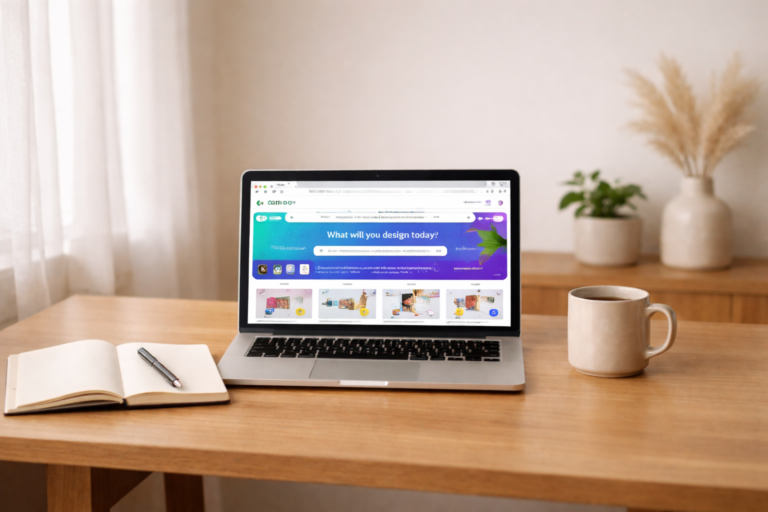
To get started open Canva and search:
- “Workbook”
- “Guide”
- “Checklist”
- “Planner”
Look for a template that:
- Uses repeated layouts
- Has clean spacing
- Is easy to customize
- Is FREE (Doesn’t have the crown icon)
By starting off with a template, you don’t have to worry about designing from scratch. Instead you’re going to be adapting the template to your own brand style (colours, fonts, graphics, photos, and uniqe content).
This is why Canva templates are so powerful for beginners. They take away the overwhelm that creeps in when you’re stuck staring at a blank page wondering where to begin.
It is important to go with a free template (no crown icon) or you will need the pro version of Canva in order to download your finish product.
Step 4: Customize to Your Brand (15 Minutes)
To keep this under an hour, simplify your approach.
Focus on:
- Updating brand colors
- Changing fonts (you can use font pairing suggestion in Canva if you haven’t decided on fonts yet)
- Swapping images or elements
- Keeping layouts consistent
You don’t need to reinvent the design to make it your own. If certain pages in the template don’t align with what you need or you feel they add no value you can always delete them and/or duplicate page layouts that you feel are the most useful.
Optional AI Help Inside Canva
When it comes time to adding text to your guide you can use AI within Canva to help rewrite or shortening text:
- Use Magic Write to refine tone or clarity
- Keep edits light and intentional
- Shorten long paragraphs to fit the layout
Step 5: Add Your Content (15 Minutes)
Now it’s time to fill in your pages.
At this stage, you’re not trying to sound perfect or polished, you’re simply getting the content out of your head and onto the page.
You can write everything yourself or use beginner-friendly AI to help you get started faster.

How ChatGPT Can Help at This Stage
ChatGPT works best when it already knows:
- Your topic
- Your audience
- The problem you’re solving
- The outline you created earlier
Since you’ve already shared that information in the previous prompts, you can now ask AI to help you draft page content, one page at a time. By focusing on your content one page at a time it makes it easier to promp Chat to make changes as you go along.
Using AI is especially helpful if you:
- Feel stuck staring at a blank page
- Know what you want to say but not how to phrase it
- Want help organizing your thoughts clearly
ChatGPT Prompt to Draft Your Pages
Copy and paste this prompt into ChatGPT:
“Using everything we’ve discussed so far about my digital product, help me draft content for Page [number] of my guide.
The topic of this page is: [describe the page focus].
Please write in clear, beginner-friendly language.
Use short paragraphs and bullet points where helpful.This content is meant to be supportive and easy to understand, not overwhelming.”
You can reuse this prompt for each page of your guide.
Important: How to Use AI Content the Right Way
Think of AI as a starting point, not the final draft.
Once you have your AI content suggestions you can:
- Rewrite the content in your own words
- Adjust the tone to sound more like you
- Shorten or simplify sections
- Copy and paste if it already sounds right to you
But, make sure to always:
- Read everything carefully
- Double-check that the information is factual
- Make sure it aligns with your values and audience
AI can help you move faster, but you’re still the editor and it’s your job to make sure that what you’re sharing with your audience is accurate and aligned with your values. Taking the time to fact check and ensure it aligns with your values (and your audiences) you’re posistioning youself as someone that can be trusted, which is very important for your brand.
Content Guidelines to Keep Things Simple
As you add content, aim for:
- One main idea per page
- 2–4 short paragraphs max
- Bullet points for clarity
- Plenty of white space
Rememebr simple doesn’t mean low value.
Simple means easy to use, and easy to finish. The easier it is for your audience to use your product, the more likely they actually will.
Step 6: Export and Name Your Product (5 Minutes)
Once you have all of your content added you can export as:
- PDF (Standard)
Make sure you name your product clearly:
- “The Beginner’s Guide to [Outcome]”
- “[Problem] Starter Workbook”
- “A Simple Guide to [Result]”
Your title should instantly tell readers:
- Who it’s for
- What it helps them do/ achieve
What You’ve Accomplished (Even If It Feels Small)
In under an hour, you now have:
- A real digital product
- A clear audience
- A focused solution
- A repeatable process
This is how sustainable online businesses begin, by creating simple solutions to specific problems for a defined audience. If you’ve done it once, you can do it again.
So, go do it again!
Get Clarity Before You Create
As i mentioned before If choosing most beginners don’t struggle because they lack motivation or creativity.
They struggle because they try to design before they decide who their product is actually for. If you don’t know who you’re creating the product for and what their actual needs are, it’s hard to know what to make.
That’s why I created a free resource to help you slow down and choose intentionally.
Free Resource: The Niche Down Guide
This guide helps you:
- Identify the right audience
- Clarify which problems to solve
- Choose digital product ideas that actually make sense
Download the Niche Down Guide and remove the guesswork before you open Canva.
Get clarity before you create.

Mini Summary
- You can create digital products with AI without tech overwhelm
- Canva templates eliminate the need for design skills
- AI supports clarity and structure, not replacement
- A 10–15 page PDF is more than enough to start
- Clarity comes before creation
If you want help choosing what to create, start with the Niche Down Guide and move forward with confidence — one simple step at a time.
Let me know in comments what you decided to create for your first product!







Leave a Reply